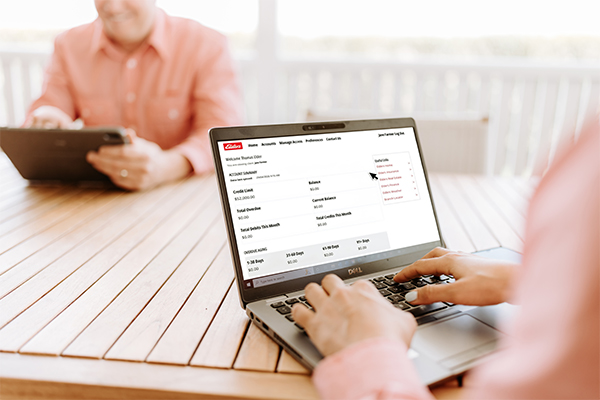
Replacing the Elders Online portal, Elders MyAccount brings your Elders Trading Account information, invoices, statements and payments together in one place.
Through the Elders MyAccount portal, can:
The new portal has improved security and features a simplified layout and improved navigation, to help you quickly find the information you need.
To help you get started, we've prepared a short introduction video that walks through the key features of MyAccount. We recommend watching the video below before logging in for the first time.
If you currently use Elders Online, by now you should have received an email with login instructions.
Tip: we suggest checking your junk/spam folder in case it has gone there. If you haven't received an email, contact your local branch.
If you're new and would like to set up access, please register here and we'll be in contact with you.
For more information about Elders MyAccount, or to discuss access requirements, please contact your local Elders branch.
If you are an existing Elders Online user, by now you should have received an email with instructions to activate your Elders MyAccount access. Please remember to check your spam or junk folder. If you’ve not received one, contact your local branch.
If you are not an existing Elders Online user and would like to access Elders MyAccount, simply register now and a member of our team will be in contact with you.
Your Welcome email is sent from MyAccount@elders.com.au.
If you haven't received it, please try the following:
If you're still unable to locate the email, please contact your local Elders branch for assistance.
The main changes are:
Two-factor authentication adds an extra layer of security. In addition to a password, a one-time code is sent to the client’s email or mobile when logging in. This helps protect sensitive account information.
Remember: Elders would never ring you and ask for your password or other sensitive information.
The Verification Code emails are sent by Microsoft and does not include Elders branding.
The email will come from account-security-noreply@accountprotection.microsoft.com.
If you haven't received your verification code, please try the following:
Important tip: Avoid requesting multiple verification codes in quick succession. Repeated requests can cause Microsoft to temporarily stop sending codes. If you've made several attempts, wait 24 hours before requesting another code.
Yes. Existing Elders Online users should have received via email, instructions on how to access Elders MyAccount and set up their new login details. If you're a brand-new user (who has never previously used Elders Online), simply register now and a member of our team will be in contact with you.
Yes. Where you have access to view multiple businesses, these can be managed using a single Elders MyAccount login. You can use the Client Selector in the top right corner of the homepage and choose the business you wish to view.
From the main menu select Accounts to view your account information. Within the Accounts section, click View Details on the account you want to explore further.
Once you’re viewing an account, past transactions are listed at the bottom of the Account Summary page.
As part of the transition to our new livestock processing system, some livestock sale documents may not be available online. If you receive an error when opening a document, please contact your local Elders branch, who can provide a copy and assist with access.
Open your account, select View Details, then click Pay Now to be redirected to the NAB payment gateway.
Once the payment has been completed, you'll be returned to the MyAccount portal.
If you’re an account administrator, go to Manage Access from the main menu.
From there, you can:
You can update statement delivery settings within the Manage Access section under Account Communication options.
To view or update general email communication preferences, use the Preferences section in the main top menu.
The process to change account details such as names or email has not changed. Please contact your local branch.
Please note: if you change email address, you will get new onboarding email and will have to reset the password again.
Please refer to the video on this page, which walks through the main features of Elders MyAccount.
If you need additional, tailored help, contact the friendly staff at your local Elders branch.
If you can't find what you are looking for, or something doesn't seem right, please contact your local branch during opening hours, or complete the form below and we'll get back to you.